Showing posts with label Chrome. Show all posts

Thursday, July 18, 2019

Chromebook Tips and Tricks


https://www.technipages.com/reset-chromebook
Press “Refresh” Chromebook Refresh and “Power” Chromebook Power simultaneously to force a restart.
Simply press and hold the “Power” Chromebook Power button until the Chromebook shuts off. You can then turn it back on.
https://www.chromestory.com/2014/03/add-multiple-accounts-chromebook-switch-without-logging/
Switching profiles is as easy as clicking on the profile picture in the system tray popup. But there is a keyboard shortcut as well.  <Ctrl> + <Alt> + <Period> and <Ctrl> + <Alt> + <Comma> keyboard shortcuts.
https://www.computerhope.com/jargon/i/insertke.htm#chromebook
On Google Chromebooks, you can simulate an Insert key or enter overwrite mode by pressing the Search key and the period key at the same time.

How do I use function keys
Now, press the Search key - note the number row keys map to F1-F12

Chromebook-Specific Shortcuts
https://www.computerhope.com/shortcut/chromebook.htm
Ctrl+Shift+V Past text as plain text
Ctrl+Shift+LLock your computer's screen.
Alt+1 through Alt+8Activates apps 1-8 on your shelf.
Alt+Shift+MOpen the files app.
Alt+Shift+SOpen the status menu.
Ctrl+Alt+ZToggle ChromeVox on or off.
Ctrl+Shift and + or -Change the screen resolution.
Ctrl+Shift and 0Set the screen resolution back to default.
Ctrl+Shift and ReloadRotate the screen 90 degrees.
F1-F12Search + 1 to Search + =
Page upAlt or Search and up arrow.
Page downAlt or Search and down arrow.
Ctrl+Window switcher key 1 or Ctrl+F5Take a screenshot of the current page.
Ctrl+Shift+Window switcher key 2 or Ctrl+Shift+F5Take a partial screenshot of the current page.
Ctrl+Shift+Right ArrowSelect the next word.
Ctrl+Shift+Left ArrowSelect the previous word.
Shift+Search + Right ArrowSelect text until the end of the line.
Shift+Search + Left ArrowSelect text until the end of the previous line.
Ctrl+BackspaceDelete the previous word.
Alt+BackspaceForward delete.
Ctrl+Right ArrowMove cursor one word to the right.
Ctrl+Left ArrowMove cursor one word to the left.
Ctrl+Alt+Up ArrowGo to the top of the page.
Ctrl+Alt+Down ArrowGo to the bottom of the page.
Ctrl+Search + Right ArrowGo to the end of a document.
Ctrl+Search + Left ArrowGo to the beginning of a document.

ChromeVox is a screen reader created by Google that allows users to browse the Internet with the aid of synthesized speech played through their speakers or headphones
https://www.howtogeek.com/189324/master-chrome-os-with-these-chromebook-keyboard-shortcuts/
Press Ctrl + Alt + ? (or Ctrl + Alt + / ) to open a keyboard shortcut cheat sheet at any time. 

Ctrl + Shift + L – Lock your Chromebook’s screen.
Ctrl + Shift + Q – Log out of your Chromebook. Press the key combination twice to quit.
Alt + E – Open the Chrome browser’s menu. This only works if a Chrome browser window is open and focused.
Alt + 1-8 – Launch applications located on Chrome OS’s “shelf,” or taskbar. For example, Alt + 1 will launch the first application shortcut from the left.
Alt + [ – Dock a window to the left side of your screen.
Alt + ]  – Dock a window to the right side of your screen.
Ctrl + Switcher/F5 – Take a screenshot and save it to your Downloads folder The Switcher key is located in place of the F5 key on a standard keyboard.
Ctrl + Shift + Switcher/F5 – Take a screenshot of part of the screen. Use the cursor to select the part of the screen you want to save.
Alt + Search – Toggle Caps Lock. The Search key has a magnifying glass on it and is in place of the Caps Lock key on typical keyboards.
Shift + Esc – Launch the Task Manager.

https://support.google.com/chromebook/answer/1059492
  1. Optional: To add another keyboard language, select Language and then Add languages. Choose your language(s) and select Add.
  2. In the "Languages and input" section, select Input method and then Manage input methods.
  3. Check the boxes next to the keyboard languages you'd like to use.
  4. Select Back Back.
  5. Select the keyboard language you want to use. You’ll see "Enabled" listed under the current keyboard.
  6. Optional: To see all your keyboard language options on your desktop, turn on Show input options in the shelf.

Note: You can also switch your language by pressing Ctrl + Shift + Space until you see the language you want. To switch back, press Ctrl + Space.
https://www.digitaltrends.com/computing/how-to-zip-and-unzip-files-on-a-chromebook/
If all you need to do is look at a few files, this is probably enough. But if you want to extract files from your archive, open a new file manager window, browse to or create a folder for the files, then drag everything from one window to the other.
https://chrome.google.com/webstore/detail/archive-extractor/nknadlalodfadgegkigkmbhofcmkhfnc

Tuesday, July 9, 2019

Chrome OS Tips and Tricks


https://support.google.com/chromebook/answer/3227606?hl=en
Try a hard reset only after other ways to fix the problem have failed. It will restart your Chromebook hardware (like your keyboard and touchpad), and might delete some files in your Downloads folder.
For most Chromebooks, follow the steps below:
  1. Turn off your Chromebook.
  2. Press and hold Refresh Refresh + tap Power Shut down. 
  3. When your Chromebook starts up, release Refresh Refresh.
On tablets: Press the Volume Up and Power buttons for at least 10 seconds, then release them.

Press and hold the Power key for 3 seconds.

https://support.google.com/chromebook/answer/6088201?hl=en
Before you can sign in another person, be sure you've added the second person to your Chromebook. Then follow these steps:
  1. Sign in to your Google Account.
  2. At the bottom right, select the time.
  3. Select your Google Account email.
  4. Select Sign in another user.
  5. You'll see a reminder to use the feature only with people you trust. Select OK.
  6. Pick a person, then enter their password. You can add up to 7 users.
https://www.chromestory.com/2014/03/add-multiple-accounts-chromebook-switch-without-logging/
Switching profiles is as easy as clicking on the profile picture in the system tray popup. But there is a keyboard shortcut as well.  <Ctrl> + <Alt> + <Period> and <Ctrl> + <Alt> + <Comma> keyboard shortcuts.
https://support.google.com/chromebook/answer/177889
  1. Select Settings Settings.
  2. Select Menu Menu and then About Chrome OS.
  3. Under "Google Chrome OS," you'll see which version of the Chrome operating system your Chromebook is using. 
  4. Select Check for Updates. 
  5. If your Chromebook finds a software update, it will start to download automatically.
  1. Scroll down and select About Chrome OS.
  2. Select Detailed build information.
  3. Next to "Channel," select Change channel.
  4. Pick a channel.
  5. Select Change Channel.
    • If you're switching to a more experimental channel (Beta or Dev), your Chromebook will start to download an update, then ask you to restart your Chromebook.
    • If you're switching to a more stable channel (Stable or Beta), click Change channel and Powerwash. When the update installs, click Relaunch and Powerwash. Everything will be deleted from your Chromebook, and you'll need to sign in with your Google Account again.

Release info
https://chromereleases.googleblog.com/

https://support.google.com/chromebook/answer/9145439
  1. Select Settings Settings.
  2. Under "Linux (Beta)," select Turn On.
https://www.aboutchromebooks.com/news/chrome-os-75-uninstall-linux-apps-launcher-on-crostini-chromebook/
sudo apt remove atom
https://www.aboutchromebooks.com/news/chromebooks-project-crostini-install-debian-apps-packages-in-chrome-os/

https://kmyers.me/blog/chromeos/getting-the-atom-text-editor-to-work-on-chromeos/
Lets start by accessing your Terminal via the “Terminal” application or Gnome Terminal to get into your virtual machine. Once you have the terminal open, simply run the following commands:
sudo apt-get update
sudo apt-get install gconf2 gvfs-bin git wget curl
wget https://atom.io/download/deb -O atom.deb
sudo dpkg -i atom.deb
sudo apt-get install -f
rm atom.deb
sudo dpkg -r package_name


Friday, September 14, 2018

Chrome Tips


How to remove http:// adding in addressbar of google-chrome/firefox?
https://superuser.com/questions/503436/how-to-remove-http-adding-in-addressbar-of-google-chrome-firefox
So basically, just add a space to the start. Most commands don't even care if you keep the space in the parameters.
You can create a bookmark int the Bookmarks Bar, name it "GetHostname" and paste the following javascript code into the "URL" part of the bookmark:
javascript:(function(){
    function executeCopy(text) {
        var input = document.createElement('textarea');
        document.body.appendChild(input);
        input.value = text;
        input.focus();
        input.select();
        document.execCommand('Copy');
        input.remove();
    }
    executeCopy(window.location.hostname);
})();

https://www.dailydot.com/debug/best-hidden-features-google-chrome/

With the Screencastify extension, you can record all the screen activity—including audio—that occurs inside a tab

Several free photo-editing sites have released high-quality Chrome extensions, including Fotor, Pixlr, and BeFunky.  

https://www.lifehack.org/articles/technology/20-killer-google-chrome-tips-and-tricks-you-cant-miss-for-sure.html
1. Open Multiple Pages on Start up
2.  Pin Tab
3. Display Home Button
4. Create desktop shortcuts of your favorite websites

In Chrome, you can turn the site into a desktop app to quickly access your favorite website. To make a shortcut, navigate to your favorite website, click the wrench icon select “Tools” and then click on “Create application shortcuts.”
5. Utilizing Omnibox

In Chrome, the URL address bar is also called as Omnibox, which can be used for simple mathematical queries. Just type the calculations or conversions directly in the Omnibox and press enter to see the results yourself.
7. Secret Mode
8. Task Manager
9. Change search engine in the omnibar

10. Change link or tab location
If you want to change the tab location or want to open a link at a specific tab location, you can hold the link or the tab, drag the link or the tab to a specific tab location. A small arrow will appear while dragging and dropping the link.

12. Drag and drop downloaded file
One of the coolest Chrome tips; drag and drop your downloaded file from your chrome browser. You need to drag the file from the Chrome download window and drop it to your any other file browser.


Press Ctrl-H, or go to Customize -> History, to open the history tab.

14. Resize Text Area
Google Chrome also allows you to resize the text area on any website. You’ll see two slanted lines at the bottom right corner of the “text area” drag it by using your mouse to resize the text area on the screen.

15. Use auto-fill

We always feel irritated typing our address again and again, but you might love Chrome’s AutoFill options that can recollect the information and save you from the repeat effort.

Go to settings -> Options -> Personal Stuff then choose “AutoFill options.” By selecting “Add address,” you can enter your details.

Use Ctrl+Tab to navigate Tabs one by one, Press Ctrl-1 to go to 1st Tab, Press Ctrl-2 to go to 2nd Tab, and so on. You can also switch to the last Tab by pressing Ctrl-9.

Go to Settings and look for Under the Hood Options then click on sign into “Google Cloud Print”. By doing so, you will be able to setup your printer account to use Google cloud print. You can print your document from wherever you are and you can even print to it from your mobile phone, PC at home or work, or any system that is connected to the internet.


What is Adblock Warning Removal List And How To Add It In Your Browser
https://www.itechtics.com/adblock-warning-removal-list/

https://wiki.millersville.edu/display/instructdocs/Print+from+a+Selection+-+Mac+OSX+-+Chrome+and+Firefox
Print from a Selection

http://interactivelogic.net/wp/2017/05/google-chrome-pro-tip-how-to-merge-multiple-tabs-from-two-google-chrome-windows-2/
How to Merge Multiple Tabs from Two Google Chrome Windows
Left-click the first tab in the window you want to merge. While holding the shift key, left-click the right most tab. All of tabs for the current window are now selected, so you can drag and drop them as as group on the other window.


  • Install Tab Scissors from the Chrome Web Store.
  • A scissor icon will be added to the right of the URL address bar.
  • Select the left most tab that you want to split off into another browser window. The tabs on the right will split off to a new window on the same side.

Tuesday, February 13, 2018

Chrome Tips and Tricks


Starting in Chrome 59, notifications sent via the Notifications API or the chrome.notifications extensions API will be shown directly by the macOS native notification system instead of Chrome's own system. [source]


https://support.google.com/chrome/answer/9658361?co=GENIE.Platform%3DDesktop&hl=en
  1. Go to a website you want to install.
  2. At the top right of the address bar, click Install Add.
https://medium.com/@dhormale/install-pwa-on-windows-desktop-via-google-chrome-browser-6907c01eebe4

https://support.google.com/chrome/thread/2043279?hl=en
In the bookmark manager, while looking at all your bookmarks, do CTRL A to select all. A ribbon will ask pop up top asking if you want to delete all. Voila!

https://hackernoon.com/14-hot-chrome-extensions-for-geeks-c815a3883f9e
Marmoset
Marmoset is actually not an extension but an app. Anyway, it’s pretty damn great. Marmoset allows creating beautiful code screenshots fast:
https://developers.google.com/web/tools/lighthouse/
Lighthouse
And the last but not the least, Lighthouse is an open-source, automated tool for improving the performance, quality, and correctness of your web apps.

Papier
I need maaany places to drop my thoughts. Evernote for a structured data, Telegram for fast todos on-the-way, Notion for collaboration, stickers, whiteboard. And here is another one I use: Papier. It’s a simple text editor that shows itself when you open a new tab.

Tabstop
Tabstop prevents tabs from loading when you start Chrome. Click on the blocked tab and

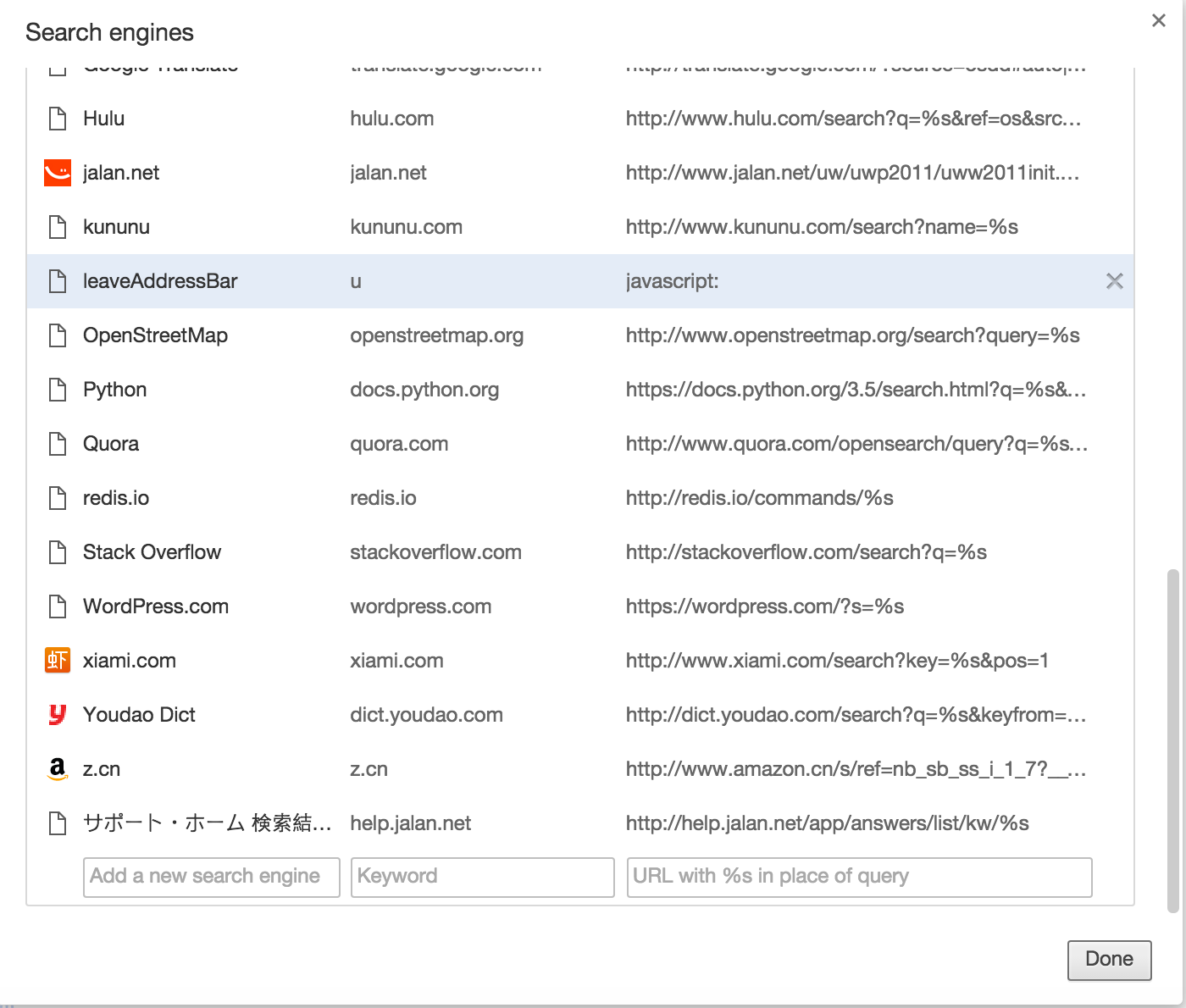
http://xavierchow.github.io/2016/03/07/vimium-leave-address-bar/
  1. In search engines setting, add a new one.
  2. Name the new engine with whatever you like, I named it as leaveAddressBar.
  3. A simple hot key for Keyword, as the illustration I used u.
  4. In URL field, input javascript:, this is the point which moves focus back to the page.
https://superuser.com/questions/290758/ways-to-see-a-list-of-all-the-tabs-open-in-chrome
On the Chrome Window menu, select Task Manager.

https://add0n.com/products.html


https://www.zdnet.com/pictures/free-must-have-google-chrome-extensions/22/
Make Google services such as Gmail a lot easier to use by removing much of the toolbar and navigation clutter. Be warned though that for the advanced features you need to be good with CSS.

https://venturebeat.com/2019/04/23/google-kills-chrome-data-saver-extension/
To give Lite mode a go, tap the corresponding Settings menu toggle in Chrome on Android. Alternatively, navigating to chrome://flags and setting the #force-effective-connection-type flag any 2G option will force Lite mode even on fast connections.
- no use
https://www.digitaltrends.com/computing/google-chrome-finally-reduce-memory-usage/
chrome://flags/#disable-best-effort-tasks
https://www.pcmag.com/feature/358482/16-pocket-tips-to-help-you-read-it-later


Buffer – Queue up content for your social media posts
https://doist.com/blog/best-chrome-extensions-productivity/
With Diigo you can bookmark links to come back to later, attach highlights and “stickies” to webpages that will always be saved, take and annotate screenshots, create groups to share content, and even share your annotated webpages on Facebook and Twitter. You can also use their “Outliner” feature to organize the things you clip into outlines with drag-and-droppable bullet points to rearrange your research as you like.

Vimum
https://gist.github.com/383c57/3341b97af214bda8340cd733225b8cf8
map e LinkHints.activateMode
map E LinkHints.activateModeToOpenInNewForegroundTab
map f focusInput
https://avilpage.com/2014/04/useful-custom-key-maps-for-vimium-to.html

0. Characters Used for Link Hints!

By default some characters are set for link hints. But I am more comfortable with the following keys
"sdfercvjkluim". So I set the characters to "fjdkslrueiwvm". But You can choose the key which you are comfortable with and use them. So when you press "f" or "F", characters used to suggest links will be the ones which you are comfortable to type!

1. Navigating Your History!

I navigate back and forth a lot. To back in history, I need to press "H" ( which means SHIFT + h ). So I mapped this 'h'. Actually by default h is mapped to scroll left, which I never use at all. So, to go back 3 pages in history, U just press "3h". The same applies for "L" also.

2. Navigating to New pages

By default "o" is mapped to open URL ( or bookmarks or history ) in current tab and "O" to open them in new tab. Most of the time, I need to open URL in new tabs only so I swapped the above options. The same goes for "b" ( for bookmarks ) also.

You can get a list of all shortcuts  at Vimium Github page or if You have installed Vimium, You can just press "?" You can set these custom maps in advanced settings of Vimium 


Custom Key Mappings


map h goBack
map l goForward
map o Vomnibar.activateInNewTab
map O Vomnibar.activate
map b Vomnibar.activateBookmarksInNewTab
map B Vomnibar.activateBookmarks
Characters used for Link hints:
fjdkslrueiwvm
https://support.google.com/chrome/answer/157179?hl=en
Jump to the next open tab⌘ + Option + Right arrow
Jump to the previous open tab⌘ + Option + Left arrow
Jump to a specific tab⌘ + 1 through ⌘ + 8
Jump to the last tab⌘ + 9

Hide Google Chrome⌘ + h
Quit Google Chrome⌘ + q

Open the Settings page in a new tab⌘ + ,
Open the History page in a new tab⌘ + y
Open the Downloads page in a new tab⌘ + Shift + j
Open the Find Bar to search the current page⌘ + f
Jump to the next match to your Find Bar search⌘ + g
Jump to the previous match to your Find Bar search⌘ + Shift + g
When Find Bar is open, search for selected text⌘ + e
Open Developer Tools⌘ + Option + i
Open the Clear Browsing Data options⌘ + Shift + Delete


https://blog.hubspot.com/sales/chrome-keyboard-shortcuts

https://bugs.chromium.org/p/chromium/issues/detail?id=963190

Labels

Review (572) System Design (334) System Design - Review (198) Java (189) Coding (75) Interview-System Design (65) Interview (63) Book Notes (59) Coding - Review (59) to-do (45) Linux (43) Knowledge (39) Interview-Java (35) Knowledge - Review (32) Database (31) Design Patterns (31) Big Data (29) Product Architecture (28) MultiThread (27) Soft Skills (27) Concurrency (26) Cracking Code Interview (26) Miscs (25) Distributed (24) OOD Design (24) Google (23) Career (22) Interview - Review (21) Java - Code (21) Operating System (21) Interview Q&A (20) System Design - Practice (20) Tips (19) Algorithm (17) Company - Facebook (17) Security (17) How to Ace Interview (16) Brain Teaser (14) Linux - Shell (14) Redis (14) Testing (14) Tools (14) Code Quality (13) Search (13) Spark (13) Spring (13) Company - LinkedIn (12) How to (12) Interview-Database (12) Interview-Operating System (12) Solr (12) Architecture Principles (11) Resource (10) Amazon (9) Cache (9) Git (9) Interview - MultiThread (9) Scalability (9) Trouble Shooting (9) Web Dev (9) Architecture Model (8) Better Programmer (8) Cassandra (8) Company - Uber (8) Java67 (8) Math (8) OO Design principles (8) SOLID (8) Design (7) Interview Corner (7) JVM (7) Java Basics (7) Kafka (7) Mac (7) Machine Learning (7) NoSQL (7) C++ (6) Chrome (6) File System (6) Highscalability (6) How to Better (6) Network (6) Restful (6) CareerCup (5) Code Review (5) Hash (5) How to Interview (5) JDK Source Code (5) JavaScript (5) Leetcode (5) Must Known (5) Python (5)

Popular Posts